The ultimate team player: Introducing the Microsoft Teams and MarkUp.io integration
Sync up your MarkUp.io feedback with Microsoft Teams for a seamless collaborative experience. Learn how to get real-time notifications and streamline your review process.
By Becki Kremer
January 25th 2024


Gathering feedback from your team can often feel like trying to herd a pack of wild cats. 🫠
Think less ‘cute kittens’, and more ‘feline frenzy’.
GIF Source: Giphy
But what if you could sync up all your MarkUp.io feedback updates with Microsoft Teams? Well, strap in – ‘cuz you can.
Say hello to Markup.io’s Microsoft Teams integration! 🚀
Get ready for a smoother, hassle-free collaborative experience with your team, no matter where they are.
Happy days! Tell me more about the Microsoft Teams integration.
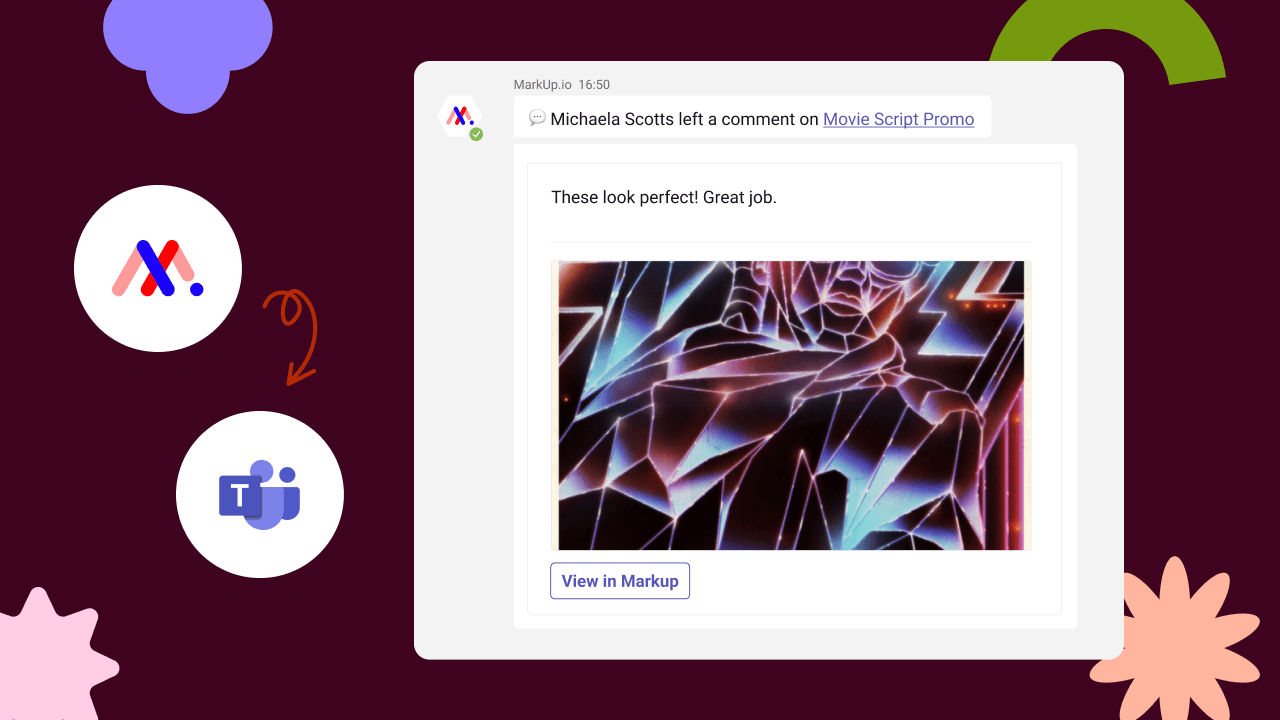
Well, with this integration, MarkUp notifications land directly in your Teams workspace.
So, there’s no more frantically searching for feedback or playing email ping-pong in your inbox!
Now you’ll receive customized, real-time notifications directly in Teams whenever:
A new MarkUp comment is posted
Someone tags or mentions you in a MarkUp comment
You get a reply to your MarkUp comments
A MarkUp comment is resolved or unresolved
This allows designers to quickly monitor incoming comments and mentions on their MarkUps, all within Teams. Or project leads can integrate MarkUp.io into their Teams chats, ensuring all key stakeholders stay informed and can leave their feedback (in the same simple way).
Just use the Teams bot to slide updates right into your DMs or broadcast them to your team members in any Teams channel needed. 👌
Got a favorite channel in mind? Subscribe it to specific MarkUp updates or, if you’re feeling extra generous, choose to broadcast all updates from any MarkUp. That way, you can see your updates the second they come in and get your team to action feedback faster.
Then, when you’ve collected all your feedback and are ready to take a breather, you only have to head over to your Teams settings.
Here, you can hit pause on your personal notifications via the Microsoft Teams app home tab, giving you a break from all updates. Now, that’s what I call ‘me time’.
Take that break – you’ve earned it.
GIF Source: Giphy
Say you want to put a stop to all MarkUp notifications in a Teams channel. No problemo! 🙌
Just send the Teams bot the command @MarkUp.io disconnect <markup url> and replace <markup url> with the MarkUp or Workspace URL you’d like to stop broadcasting from.
To help you zip around faster when chatting privately with the Teams bot, here’s a few commands to control the flow of your MarkUp notifications.
Send stop to pause notifications and start to resume notifications
Send settings to control what notifications you receive
Send disconnect to disconnect your account from MarkUp.io
Send help to see all the tips again
Need more info? Check out our support article for even more tasty details about the Teams integration.
How to master your review process with our integration
Creating a centralized space for feedback is the best way to prevent a chaotic review process that never seems to end. (We’ve all been there 🙃).
MarkUp.io’s Team integration does this by turning your Teams workspace into a lively, real-time bulletin board where all your feedback lives.
Here’s how:
A MarkUp update pops up in Teams to let you know there’s a new comment on your latest PDF MarkUp (or whichever of the 30+ file types you’re using).
This notification is your bat signal. Time to head into your MarkUp to see what needs solving (don’t worry, no evil villains to fight here!).
You don’t have to switch between apps – a single click transports you straight to the MarkUp comment that needs your attention.
Reply to the comment, hit send, and your teammate will also get a MarkUp update (as long as they’re integrated) so they know that feedback is ready to be reviewed.
See? Easy peasy!
You can also share MarkUp updates across public and private Teams channels (or a dedicated MarkUp channel) to get a bird’s eye view of the feedback everyone’s working on.
No more “I didn’t get the memo” excuses – each team member can now take full responsibility for reviewing MarkUps and stay focused like a cat to a laser pointer. 😺
With the Teams integration, you’re not just part of the conversation – you’re driving it!
By checking and responding to updates in an app your team uses daily, you can encourage them to engage in a real-time feedback chat and get them excited about using MarkUp.io.
Okay, I’m stoked and ready to go!
So, you’re eager to set up the integration? Well lucky you – it literally only takes a few minutes.
And then you can start breezing through those feedback updates. 🙌
Here’s how to do it.
See – told you it only takes a few minutes!
Time to bring your reviewers into the mix
Getting integrated with Microsoft Teams is a piece of cake, really. 🍰
But rallying your stakeholders to be an active part of your creative review process? Well, that’s where the going can get tough.
Why can’t they just love MarkUp.io as much as you do?
GIF Source: Giphy
Don’t fret, though – our Teams integration takes that challenge and turns it into a walk in the park (so to speak).
Here’s how:
Collecting everyone’s comments in your chosen Microsoft Teams channel doesn’t involve a complicated sign-up process. Your reviewers only have to click the MarkUp link and comment as a Guest.
Broadcasting regular updates encourages engagement from those who might’ve missed the original MarkUp link. Or who don’t know what MarkUp.io is – yet!
Pinning a MarkUp to a Microsoft Teams channel lets anyone drop in and add their comments. Just upload your MarkUp as a file and click More attachment options (…) and then Make this a tab. This stops the MarkUp from getting lost in the shuffle of other files.
A flurry of updates in a Microsoft Teams channel can be just the FOMO nudge needed to get stakeholders involved in the conversation. And make them eager to use MarkUp.io more regularly.
Let’s get integrated
There ya have it! It’s time to streamline your team feedback process like never before. 🔥
Get stuck in and set up the Microsoft Teams integration through the integrations tab in your MarkUp.io Workspace.
Microsoft Teams not your thing? No problem at all. Swing by this blog all about our Slack integration to learn more about how you can set that up.
Rest assured, we’ve got your back across all your communication apps!